
Return to your Visual Studio Code Terminal window. Create the host_vars directory for your Site2 fabric.
mkdir -p host_vars/site2-fabric
For your site2-fabric fabric, create a file named fabric.nac.yml in the host_vars/site2-fabric directory.
Since this VXLAN fabric is a small representation in this lab, all of your data model definitions for the fabric can be contained in a single file.
Similar data is used for the fabric, global and underlay sections of the model for this new fabric as was used for the Site1 fabric, but with different values.
Switches are included in the topology section of the model, along with interface definitions. The two types of switches in this fabric are a border gateway spine and a leaf switch.
touch ~/workspace/ndlab/nac/host_vars/site2-fabric/fabric.nac.yml
code-server -r ~/workspace/ndlab/nac/host_vars/site2-fabric/fabric.nac.yml
---

vxlan:
  fabric:
    name: site2-fabric
    type: VXLAN_EVPN
  global:
    ibgp:
      bgp_asn: "65002"
      route_reflectors: 2
      anycast_gateway_mac: 1234.5678.9000
      dns_servers:
        - ip_address: 10.0.249.16
          vrf: management
      ntp_servers:
        - ip_address: 10.81.254.131
          vrf: management
  underlay:
    general:
      routing_protocol: ospf
      underlay_routing_loopback_id: 0
      underlay_routing_protocol_tag: UNDERLAY
      underlay_vtep_loopback_id: 1
      replication_mode: multicast
    ipv4:
      fabric_interface_numbering: p2p
      subnet_mask: 31
      underlay_routing_loopback_ip_range: 10.22.0.0/22
      underlay_vtep_loopback_ip_range: 10.222.100.0/22
      underlay_rp_loopback_ip_range: 10.252.252.0/24
      underlay_subnet_ip_range: 10.2.0.0/16
    ospf:
      area_id: 0.0.0.0
    multicast:
      underlay_rp_loopback_id: 252
      rp_mode: asm
  topology:
    switches:
      - name: site2-bgw-s1
        serial_number: 9H9PGIK2W96
        role: border_gateway_spine
        management:
          management_ipv4_address: 10.15.9.21
          default_gateway_v4: 10.15.9.1
      - name: site2-l1
        serial_number: 9T1I7LT1KA7
        role: leaf
        management:
          management_ipv4_address: 10.15.9.22
          default_gateway_v4: 10.15.9.1
        interfaces:
          - name: Ethernet1/4
            description: To Server4 E1
            mode: access
            enabled: true
            mtu: jumbo
            speed: auto
            spanning_tree_portfast: true
          - name: Ethernet1/5
            description: To Server5 E1
            mode: access
            enabled: true
            mtu: jumbo
            speed: auto
            spanning_tree_portfast: true
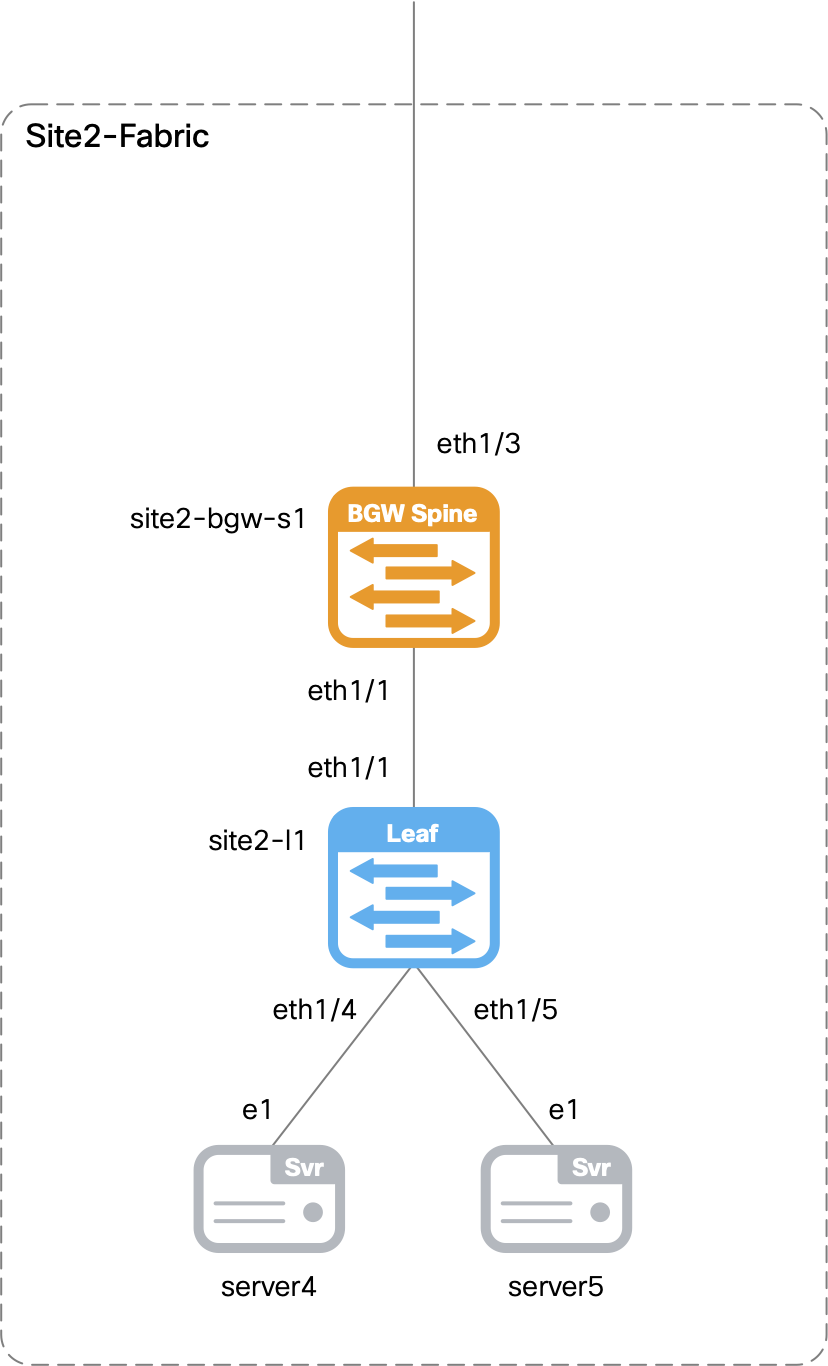
The Site2 inventory will leverage the same ND group and ND instance as the Site1 and External fabrics, but specify the Site2 fabric as a logical host.
touch ~/workspace/ndlab/nac/hosts.site2.yml
cat << EOF > ~/workspace/ndlab/nac/hosts.site2.yml
---
# Inventory Information For Site2 Fabric
nd:
  hosts:
    site2-fabric:
      ansible_host: 10.15.0.35
EOF
Make sure you are in your root Ansible directory.
cd ~/workspace/ndlab/nac
From the root Ansible project directory execute the following command:
ansible-playbook -i hosts.site2.yml vxlan.yml
Upon a successful run of the playbook your output should look as follows:
  <... SNIP ...>

  PLAY RECAP **************************************************************************************************************************************************************************
  site2-fabric               : ok=45   changed=4    unreachable=0    failed=0    skipped=20   rescued=0    ignored=0


  PLAYBOOK RECAP ******************************************************************************************
  Playbook run took 0 days, 0 hours, 6 minutes, 8 seconds


  TASKS RECAP *********************************************************************************************
  Wednesday 03 June 2026  00:31:15 +0000 (0:00:00.055)       0:06:08.166 ********
  ===============================================================================
  cisco.nac_dc_vxlan.create : Execute Create Resources ------------------------------------------- 231.03s
  cisco.nac_dc_vxlan.deploy : Execute Deploy of Resources ---------------------------------------- 120.28s
  cisco.nac_dc_vxlan.common : Build Resources ------------------------------------------------------ 3.08s
  cisco.nac_dc_vxlan.connectivity_check : Get Cisco Nexus Dashboard Fabric Controller Version ------ 1.63s
  cisco.nac_dc_vxlan.deploy : Execute Deploy of Resources ------------------------------------------ 1.38s
  cisco.nac_dc_vxlan.remove : Execute Remove Resources --------------------------------------------- 1.36s
  cisco.nac_dc_vxlan.validate : Copy Service Model Data to Host ------------------------------------ 0.78s
  cisco.nac_dc_vxlan.connectivity_check : Verify Authorization to Nexus Dashboard ------------------ 0.76s
  cisco.nac_dc_vxlan.validate : Copy Extended Service Model Data to Host --------------------------- 0.66s
  cisco.nac_dc_vxlan.validate : Stat Factory Defaults ---------------------------------------------- 0.53s
  cisco.nac_dc_vxlan.connectivity_check : Verify Connection to Nexus Dashboard --------------------- 0.51s
  cisco.nac_dc_vxlan.connectivity_check : Get Cisco Nexus Dashboard Version ------------------------ 0.48s
  cisco.nac_dc_vxlan.validate : Stat the Golden Service Model Data --------------------------------- 0.32s
  cisco.nac_dc_vxlan.validate : Stat the Extended Service Model Data ------------------------------- 0.30s
  cisco.nac_dc_vxlan.create : Display Create Resources Summary ------------------------------------- 0.26s
  cisco.nac_dc_vxlan.remove : Display Remove Resources Summary ------------------------------------- 0.25s
  cisco.nac_dc_vxlan.remove : Log Deploy During Remove Info Message -------------------------------- 0.25s
  cisco.nac_dc_vxlan.common : Display Change Flag Values ------------------------------------------- 0.22s
  cisco.nac_dc_vxlan.common : Display Resource Build Summary --------------------------------------- 0.21s
  cisco.nac_dc_vxlan.common : Create Fact To Store Common Role Path -------------------------------- 0.21s

  ROLES RECAP *********************************************************************************************
  Wednesday 03 June 2026  00:31:15 +0000 (0:00:00.055)       0:06:08.165 ********
  ===============================================================================
  create ---------------------------------------------------------------- 231.35s
  deploy ---------------------------------------------------------------- 121.80s
  validate ---------------------------------------------------------------- 5.19s
  common ------------------------------------------------------------------ 3.81s
  connectivity_check ------------------------------------------------------ 3.76s
  remove ------------------------------------------------------------------ 1.91s
  common_global ----------------------------------------------------------- 0.04s
  ~~~~~~~~~~~~~~~~~~~~~~~~~~~~~~~~~~~~~~~~~~~~~~~~~~~~~~~~~~~~~~~~~~~~~~~~~~~~~~~
  total ----------------------------------------------------------------- 367.86s
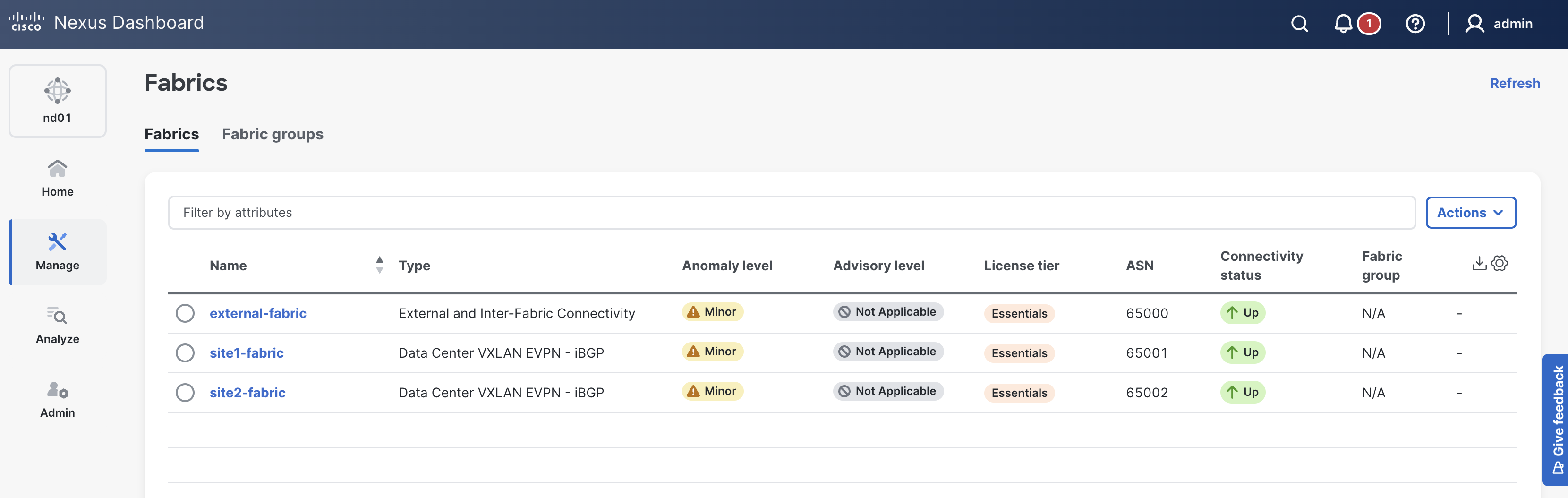
site2-fabric in the list of fabrics; click it.
If your site2-fabric is not showing, please try clicking the Refresh button in the top-right of the Fabrics pane.
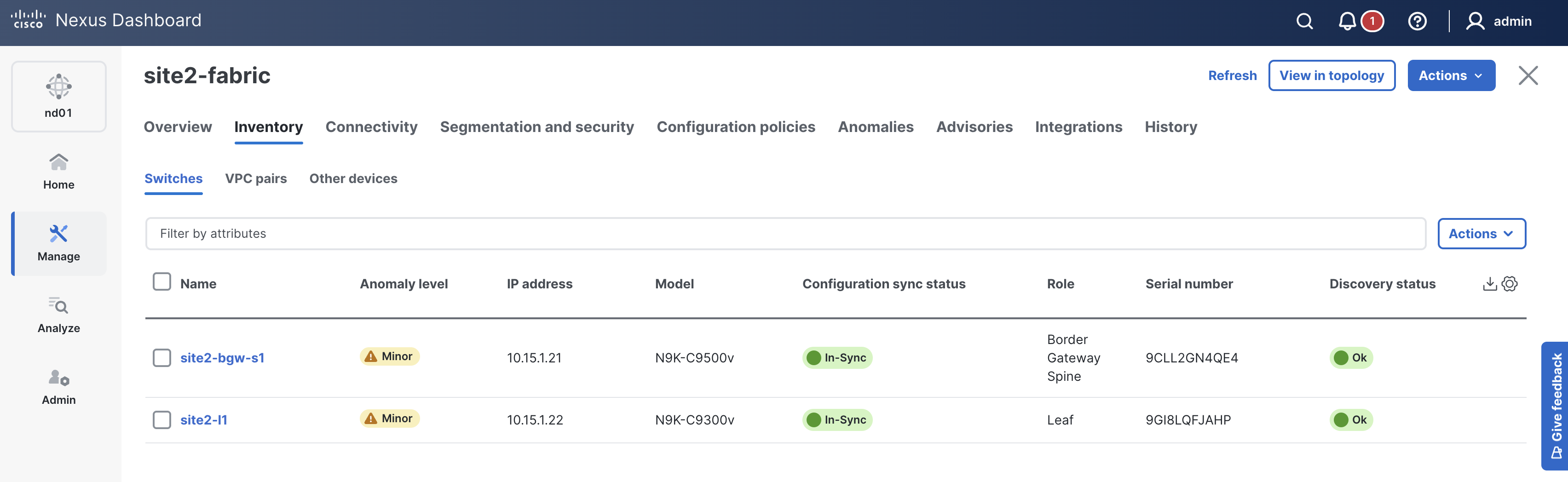
In-Sync. If not, please click the Refresh button near the Actions button
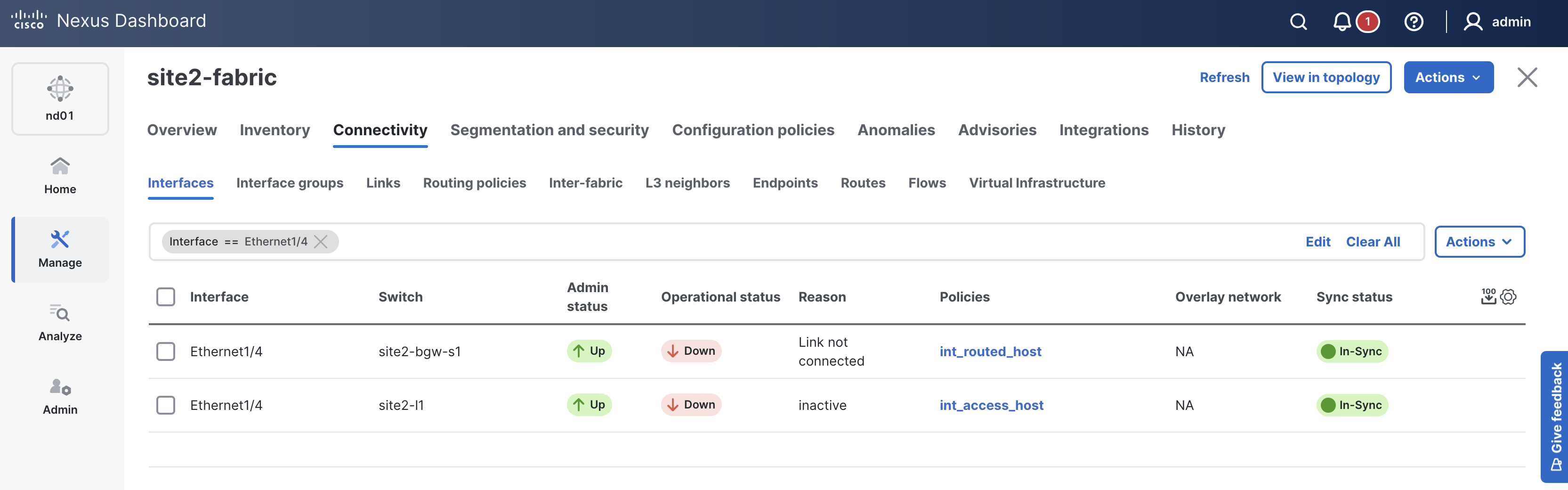

Navigate back to your VSCode application.
Please continue to the next section to create your Site1 ISN fabric, onboard an ISN switch, and configure the necessary policies to establish BGP peering between sites.